monday.com Google Drive Sync and Backup
Google Drive Sync and Backup application allows to synchronize monday.com with Google Drive

Features
- 🗂️ Automatically create folders based on board items
- 🔁 Synchronize monday.com files to Google Drive
- 🗄️ Backup files to Google Drive
- ➡️ Automatically move files to Google Drive
How To Use
The application offers different integrations to manage Google Drive folders and synchronize files.
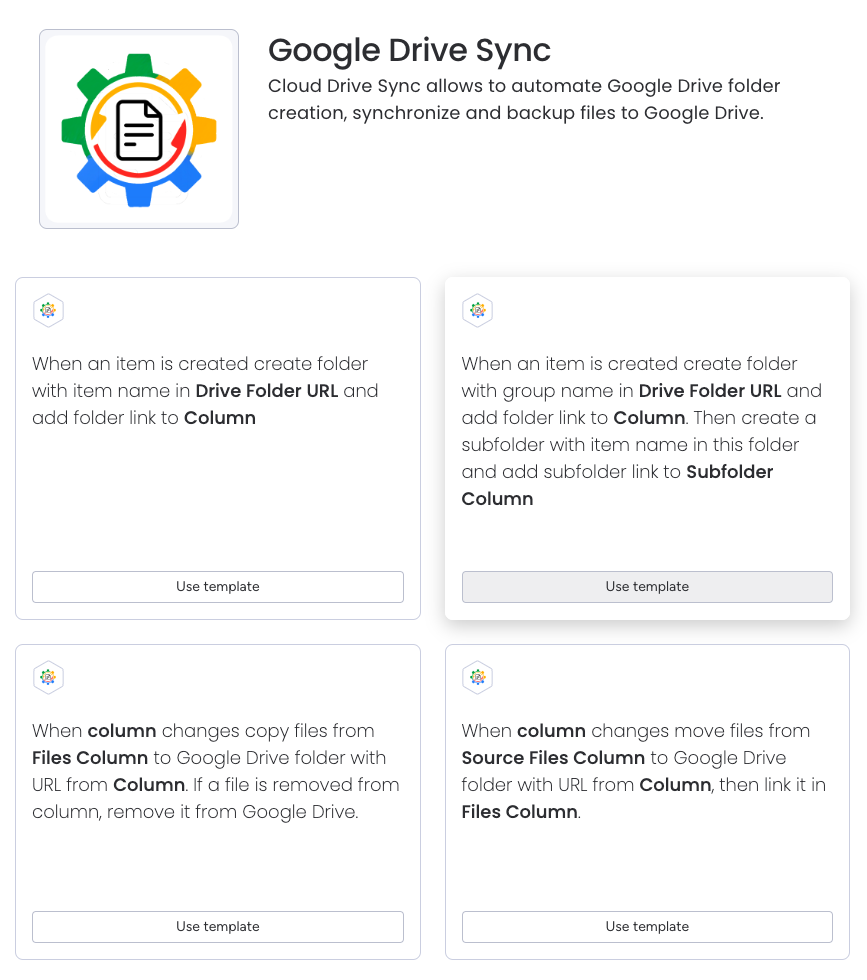
During initial set up of integration, you will be prompted to authorize the application in Google Drive. This is required to provide access to Google Drive for the application.
See demo video on top to see how to set up the integrations.
Create Folder integration
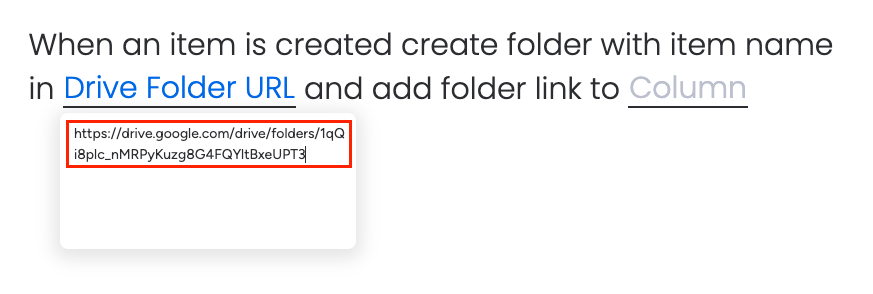
Create Folder integration requires two settings - a Google Drive folder URL and a Link column.
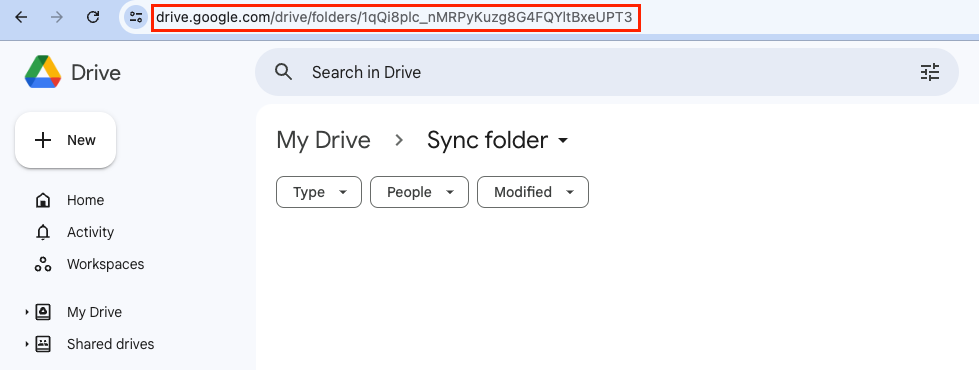
Google Drive folder URL can be retrieved from your Google Drive. This folder will become a root folder for file synchronization, and it will contain all item-based subfolders. The URL must be full, like shown on the screenshots below.
monday to Google sync integration
monday.com to Google Drive sync can be set up with the following integration:

Configure the following parameters:
- Trigger column (can be any column), a change to this column will trigger the automation.
- Source column (which must be a 'File' type column)
- A column which contains the URL of the target Google Directory, it must be of type 'Link'. It must be a column with automatically configured link by the 'Create Folder' integration.
It is important to know, that files, deleted from monday.com will also be deleted from Google Drive by this integration.
monday to Google move integration
This integration will copy files to Google Drive and replace a file on monday.com with a link to Google Drive instead of an actual file. This workflow is useful if you want to keep files in a single storage.
monday.com to Google Drive file move can be set up with the following integration:
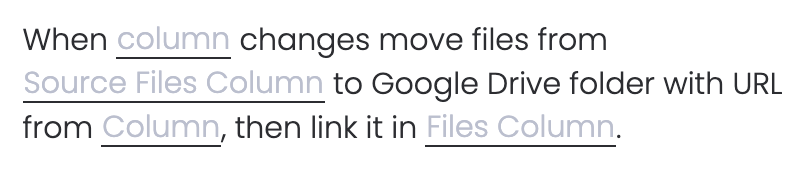
Configure the following parameters:
- Trigger column (can be any column), a change to this column will trigger the automation.
- Source column (which must be a 'File' type column)
- A column which contains the URL of the target Google Directory of type 'Link'. It must be a column with automatically configured link by the 'Create Folder' integration.
- Target column of type 'File' which will receive the links to files on Google Drive. It can be the same column same as #1
Pricing
Plese refer to monday.com marketplace pricing page for the latest information.
Support
Please use the following channels to reach out for support:
- Email: support@ops42.org